Google Pics: Edit Dates, Text and Sizes in Promotional Images
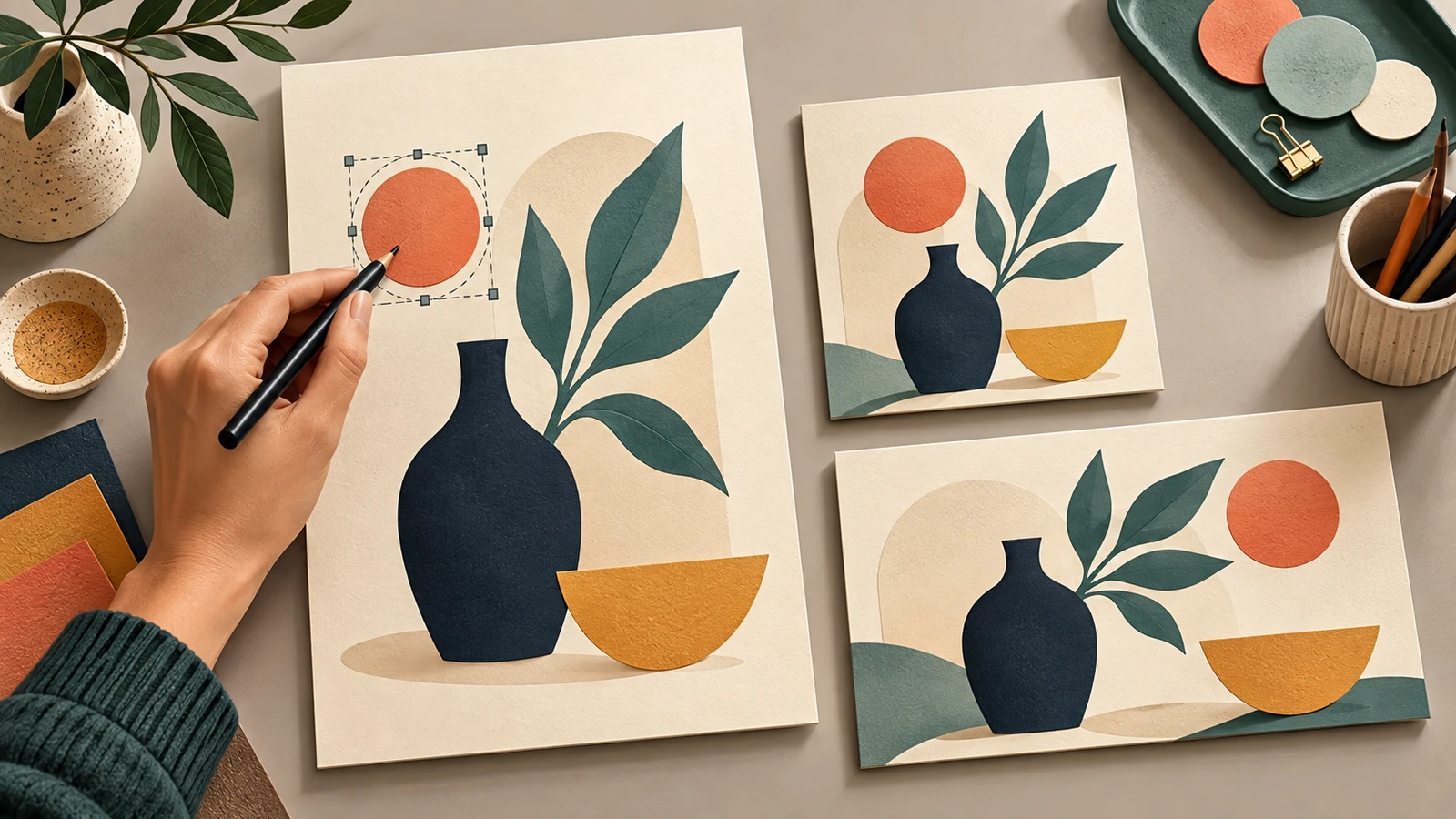
Have you ever rebuilt an entire poster just to change an event date and a line of text because you no longer had the editable source file? Google Pics lets you select elements in an existing image, edit and translate text within it, and change its aspect ratio for different channels. For marketing teams, a useful starting point is updating only what needs to change in promotional images that have already been approved. Start with one poster you have permission to edit, and work through the process from changing the date to the final review.
Start with One Poster
In Google Pics, open a poster you created yourself or have permission to use and modify, and list what needs to change. Keep your first test narrow, such as updating a single event date. Google provides instructions for importing images from your computer, Google Drive and Google Photos. Keep the original in a separate location so it is easy to distinguish from the edited version.
Define both what should change and what should stay the same to make review easier. For example, change the date while keeping the product photo, logo, price and background intact. Supply the exact, finalized wording so anyone who takes over the task can check against the same requirements.
Pics is available on computers. You need a supported Google Workspace plan, such as Business Standard or Plus, or a plan such as Google AI Pro or Ultra. You can generate and edit images in Korean and Japanese. If Pics does not appear in your work account, check your plan and whether your administrator has enabled access.
For your first test, choose an image without customers' faces or contact details. If an outside supplier created it, check whether your contract permits editing and uploading it to an external AI service.
Edit Dates and Text
Pics detects text within images. To change a single date, follow these steps.
- Hover over the date in the image and select that text element.
- Enter the finalized new date in the editing panel.
- Click Save, then click Apply in the bottom bar to apply the change.
- Place the result beside the original and check the date and surrounding text.
To change something other than text, select the relevant area and describe the change you want.
For example, you could request this change to an event poster:
Change the event date to “October 18” and leave all other text unchanged. Do not change the product photo, logo, price or background. Match the font size and alignment in the date area to the existing design.
This is an example request. Check the date first, followed by the surrounding text and the product photo. If only part of the text is recognized, or several elements are selected together, narrow the area and try again.
Exact wording and clear instructions on what to preserve are easier to check than “make it stand out more.” When changing discount text, keep track of qualifiers such as “up to,” the offer period and excluded products. Even a short phrase can change the actual terms of a sale.
Review each small change before moving to the next one so it is easier to identify where a problem occurred. Use Pics' version history, too, but give the version approved for publication a clear filename and storage location so the whole team uses the same file.
Translate and Resize for Social Media
Once the Korean version is finalized, move on to other languages and sizes. Try the sequence finalize the wording → review the translation → adjust the aspect ratio. This breaks up the review work that comes with changing several things at once.
Google says Pics supports translating individual text elements and changing aspect ratios. Even if a translation reads naturally, review it before publishing. Have someone who reads the language check that product names, prices and currencies, event dates, and registration terms match the original. If your brand has official names in that language, instruct Pics to use them exactly.
If the translation is longer, refine the wording and place benefits and conditions in separate areas. Check that the text is readable on a phone screen without removing important conditions.
Check the requirements of the channel where you will post the image, then use Crop at the top to crop it or change its aspect ratio. Select a ratio such as 16:9, 1:1 or 4:3, then click Exit to apply it. When changing a square image to a portrait format, check that the product and text are not cut off and that there is room to add a link or registration button. Check the image's aspect ratio and the requirements of each ad placement separately.
Download the finished image using the control at the top right, choosing Original size, 2K JPEG or 4K JPEG. Workspace Experiments test accounts currently support downloads at the original size only. Higher resolutions use up the promotional usage allowance faster, so choose based on the resolution and file size required by your publishing channel.
Compare the Original and Final Image
Check both how the finished image looks and whether it is ready to use in your marketing. Place the original and edited versions side by side and review these five areas.
- Text: Are the date, price, contact details, address and offer conditions accurate?
- Product: Do the shape, color and included items match the product you sell, with no unintended additions?
- Brand: Have the logo, distinctive product names and specified colors been preserved?
- Publishing requirements: Will important elements remain visible in the intended placement, and is the image readable on a phone?
- Usage rights: Have you checked the relevant rights for the source image, people pictured and fonts, and met your company's publishing requirements?
If the image contains a QR code, scan it to check the destination rather than just inspecting how it looks on screen. Open any URLs shown in the image, too. If AI editing changes nearby pixels, an element may look similar without working as it did before.
Could a customer register based on this image alone without misunderstanding the date, price or conditions?
Keep the original, the edit request and the approved version together. Label files by language, format and status, such as “Korean · Square · Final,” and give the person publishing the image the location of the approved file. Start with one poster, track the number of revisions and the time spent reviewing it, then expand how you use the tool.
If your team regularly updates promotional images, start by choosing AI tools around the elements you change most often and the checks you need to make. AIB runs an independent AI comparison platform without favoring any particular AI company. It helps business owners and teams choose and apply AI that fits their work and budget. Tell us which promotional images you update and how often. We can explore ways to use AI for both production and review.
Contact AIB about adopting and using AI
Sources and Further Reading
- Official announcement and features: Google Pics brings pro-level AI image creation and editing to Google Workspace
- Editing instructions: Edit images with Google Pics
- Availability, languages and limits: Learn about Google Pics availability
- Download formats and resolutions: Download, print, or share Pics images