How to Use Gemini Skills: Save Recurring Work Instructions and Migrate Gems
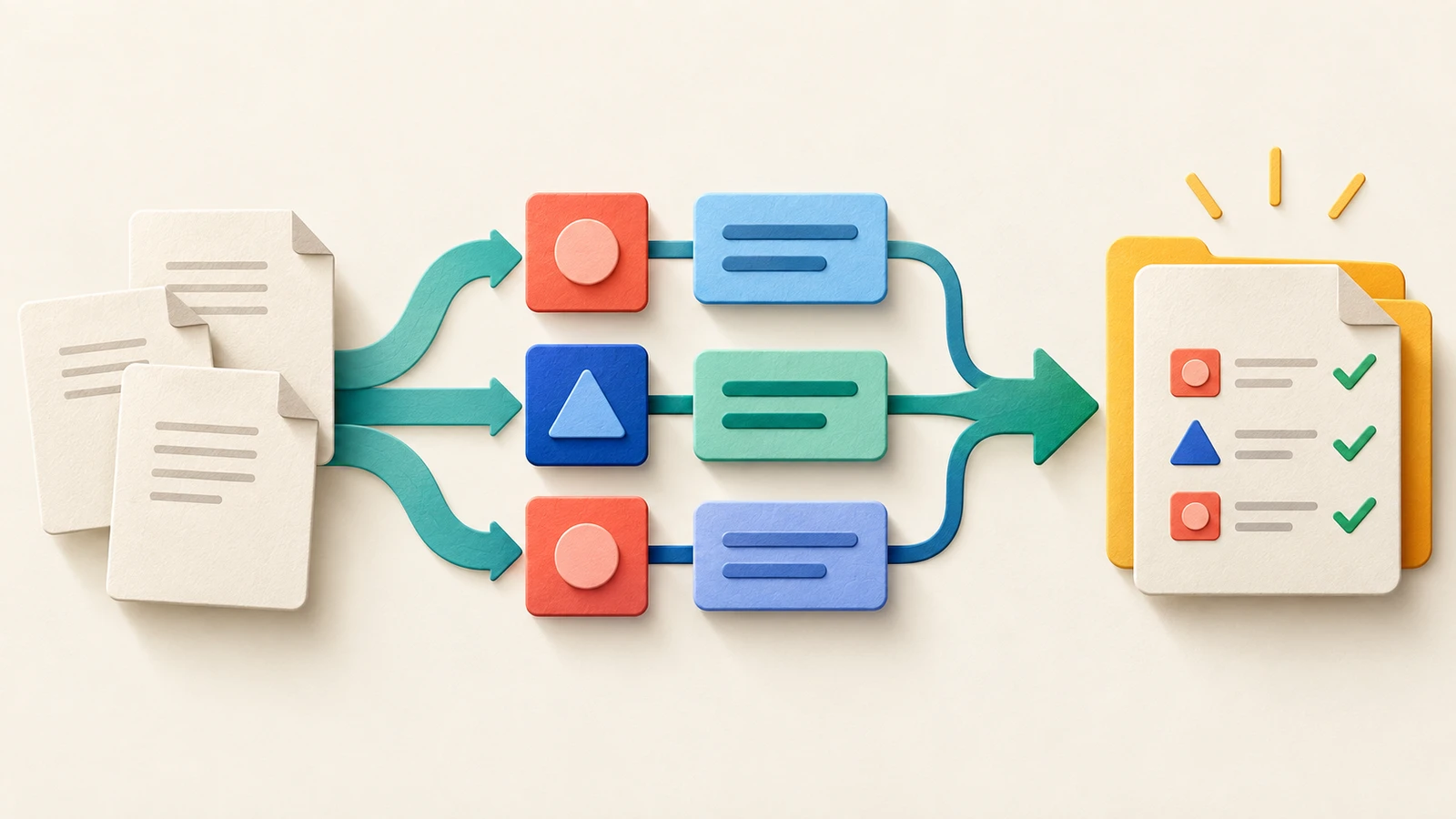
Do you type “Use our tone, follow this order, and don’t exaggerate” every time you write a product description?
Skills, which let you save your most-used work instructions once, have arrived in Gemini. On September 30, Google began rolling them out to personal accounts and announced that existing Gems would transition to Skills. ChatGPT and Claude have had this feature for quite some time, and many people have already been using it. Today, let’s look at how skills work and how to create one in Gemini.
Choose the First Task for Your Skill
A skill is a bundle of instructions and reference materials that AI can draw on for recurring work. It spells out when to use it, which steps to follow, and what format the result should take.
Try building your first skill around a prompt or task you use often. For example, if you need to write product descriptions in a set format, prepare an actual product description and your writing rules, then ask:
“Create a skill for writing product descriptions. When I provide product information, write three features, the intended users, and any precautions, in that order. Follow the tone of the attached example, and don’t include unsupported claims about benefits or lowest prices. If prices or figures are missing, ask rather than guess.”
Put the product information that changes each time in the chat, and keep the rules that always apply in the skill. This can cut down on typing or copying and pasting long instructions every time you introduce a new product.
Using Skills in ChatGPT and Claude
ChatGPT Skills let you save instructions, examples, code, and more for recurring tasks. They’re available to eligible Business, Enterprise, Healthcare, and Edu accounts, with features varying according to organization settings. You can create them from Plugins → Skills in the sidebar, or ask the AI to create one in a chat, then review and install it.
For example, save the order of your report and the way to flag unverified information in a “Weekly Sales Report” skill. Next time, just provide this week’s sales data and ask for a draft in the same format.
Claude Skills are available on Free, Pro, Max, Team, and Enterprise plans, and require code execution to be turned on. Create or enable them in Customize → Skills. If you use an organization account, check that your administrator allows them. For instance, you could save a company glossary and translation review rules, then use them when translating a new announcement.
In both services, the AI already understands the names and purposes of the skills you’ve registered, so it can automatically apply a suitable skill even if you don’t explicitly ask for it in the chat. But if you have many skills, or several with similar purposes, wouldn’t naming the exact skill make things clearer? (In Claude, use / in the chat box to call up a skill; in ChatGPT, use $.)
Skills can include program files that handle specific tasks, as well as written instructions. For example, when counting characters across several documents or calculating data according to set rules, you can have the AI run a prepared program instead of guessing the answer. This can make recurring work faster and more accurate. Whether those files can actually run depends on the AI service you use.
What’s Different About Gemini Skills?
Gemini’s Gems were customized chat tools with specific roles and instructions. With the new Skills, you can call them up in your current chat and apply several together. If you create separate “Company Tone” and “Product Description Writing” skills, you can combine them as needed.
For now, you can call up a skill by entering / followed by the skill’s name in the prompt box, or let Gemini apply enabled skills to match your request. Google says the symbol will change to @ in the future. You can also include reference files such as text, PDFs, and images.
You can import skills created in other AI services using a SKILL.md file containing their instructions. After moving a skill over, try it on one of your usual tasks to check that it works well.
From a Gem to Your First Skill
If you already use a Gem, start by moving over one simple writing task. If you don’t have one yet, create a new skill using the product description example above.
- Check the name, description, and instructions in your existing Gem, and download any reference files you need.
- In Gemini on the web, go to Settings → Skills → Create manually and copy over the instructions. In the description, explain when to apply the skill, such as “Use when asked to write a product description.”
- To include reference files, download the skill you’ve created. Put its SKILL.md file and your reference files in a folder with the same name as the skill, then upload it using Replace skill.
- Run the existing Gem and the new skill with the same product information, then compare the wording, figures, and any missing details.
Transition Dates by Account Type
Personal Google accounts and work Workspace accounts have different timelines.
- Personal accounts: Skills are rolling out to users aged 18 and over, and “Keep Activity” must be turned on. Support for existing Gems will end starting in November 2026.
- Workspace accounts: Skills in Workspace apps will roll out from October 5 for organizations on Rapid Release, and from October 19 for those on Scheduled Release. The rollout in the Gemini app for work accounts starts on October 13, with availability depending on your plan and administrator settings.
- Gems for work and education: Gems will move to the Settings menu on November 17. Support will end no earlier than March 1, 2027 for business accounts, and June 1 for education accounts. Remaining Gems will be converted into draft skills, which you’ll need to review and activate.
If you don’t see the menu yet, start by gathering your work rules and examples. Your first goal is to cut down on one correction you keep making. Collect the instructions you always add, the sentences you fix every time, and the items you can’t afford to leave out. Together, they give you the content for your company’s first skill.
Wondering which AI to use for recurring work? Start with AIB. AIB operates an independent AI comparison platform that isn’t biased toward any particular AI company. We help business owners and teams choose AI that fits their work and budget, and put it to use in their day-to-day work.
Contact AIB for advice on adopting and using AI
Sources and Further Reading
- Using ChatGPT and Claude: Skills in ChatGPT · Use skills in Claude
- Gemini features and skill creation: Let skills in Gemini tackle your most repetitive tasks · Create & manage skills for Gemini Apps · Write effective skills for Gemini Apps
- Moving from Gems and account-specific timelines: About the transition from Gems to skills · Introducing skills in the Gemini app and Workspace, plus what’s next for Gems · About the transition from Gems to skills
Read Next
More posts related to Automation →
Forget "Prompt Engineering" — Build Your Own Skills
"Prompts are everything." "Prompt engineering is the future." — Sound familiar? Writing great prompts still matters, but as AI has shifted towar…

How to Adopt AI at Work: Define Requirements, Test and Monitor Results
A team agrees to automate customer support with AI. The meeting ends, but one question remains: what exactly is the AI supposed to do? Some peop…

AI Agents Need Inference Infrastructure That Can Keep Up with Growing Token Use
On November 4, I attended the AMD Advancing AI World Tour & AI DevDay Seoul at The Westin Seoul Parnas. A central theme throughout DevDay was th…

OpenAI DevDay Exchange Seoul: What Comes After Delegating Work to AI
After attending OpenAI DevDay Exchange Seoul on October 22, the question that stayed with me was not “What can AI do?” but “Once we delegate wor…